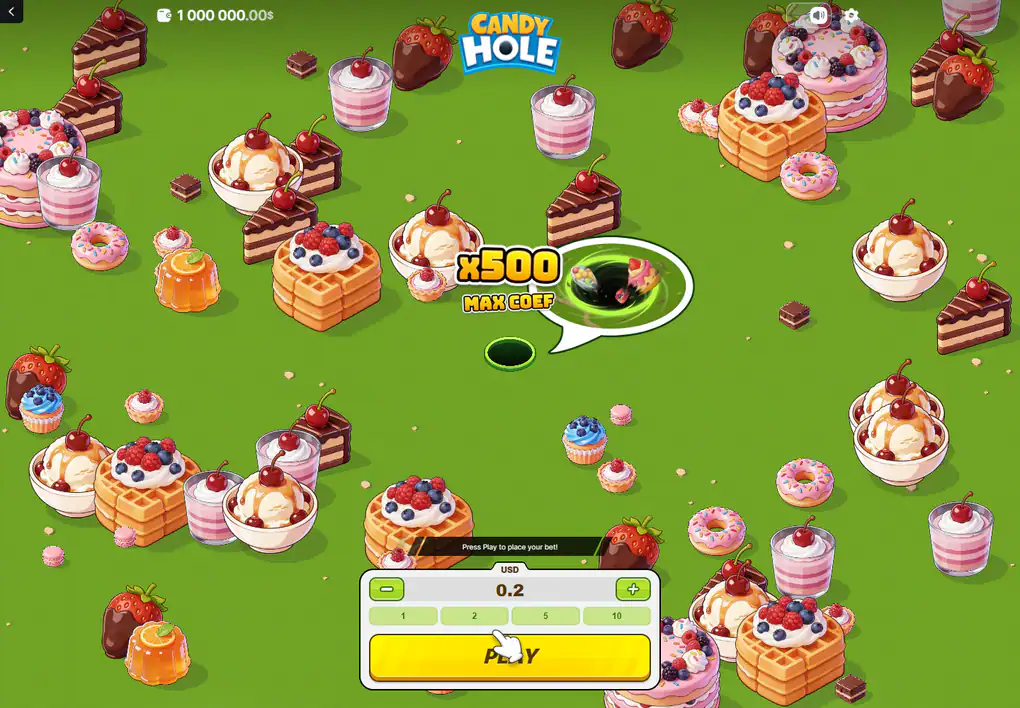
Controls in Candy Hole: the stake panel, the drag and the collect action
Setting up and playing are kept in separate states, and no control belongs to both. Before the field opens there is an amount and a button; once it opens there is a drag and a collect control; there is never a screen on which both sets are available.
Everything the game announces before a round: a ceiling, an amount and one button.
Everything the panel offers before a round
A currency label, a numeric amount, a minus and a plus for small adjustments, four shortcut values beneath the amount, and a wide action button under all of it. That is the whole of it: no bet-level selector, no number of lines, no feature purchase and no autoplay settings, because the game has none of those things.
The published range runs from 0.10 to 150. It is the same range the studio's other instant titles use, which is a property of the platform they share rather than of this game.
The four shortcuts
1, 2, 5 and 10, sitting in one row directly under the amount, with the increment buttons handling anything in between. They keep the same widths as the layout scales, which is why the row survives intact on a narrow screen while almost everything else is restacked.
The label above the amount, and what it is a property of
The frames kept on this site show USD above the amount and a dollar sign after the balance. That is worth stating precisely, because it is easy to read as a fact about the game and it is not one: it is a fact about the account that was open when the frames were taken.
The game displays whatever currency the account behind it holds, and the published range of 0.10 to 150 is quoted with no currency at all by the catalogue that lists it and in dollars by the review that covers it. A British reader should expect their own account's currency in that label, and no amount on this site has been converted into pounds to pretend otherwise — an invented conversion would be a worse answer than the honest one.
Steering by mouse and steering by finger
The same action in both cases: the hole follows a drag. On a desktop the field is wide and the drag is a mouse path; on a phone it is a thumb. There are no directional buttons anywhere in the interface, which is deliberate — the arrows in the opening overlay illustrate the drag rather than offering an alternative to it.
The practical difference is not the input but the sight line. A wide screen shows large objects at the edges and therefore shows you what you are heading towards; a phone shows the hole and its immediate surroundings, so the same decision is taken with less of the field in view.
The balance, before and after a single round
The pair of frames kept here record one stake going out: 1,000,000.00 on the pre-round screen and 999,999.80 once the field is live, a difference of exactly the 0.2 that was selected. The balance never moves into the play area; it stays in the top strip with the logo and the utility icons while the field changes underneath it.
A balance of a million with no deposit behind it belongs to a free session rather than to a prize, and it is described here as what it is. Our older pages were careful about that too, and the care is kept.
What the strip does not do is keep a count. It shows a balance, not a total staked, not a number of rounds played and not a figure for the session; a player wanting any of those has to hold them in their head while steering something with the other half of their attention. On a round that lasts seconds and is restarted by hand, that is a great deal to ask, and it is the strongest argument on this site for deciding an amount and a stopping point before the field opens.
During play the amount controls are gone and the collect figure takes their place.
Sound, settings and the way back
Three small icon controls live in the top strip: sound and a settings cog on one side, a back arrow on the other. Putting navigation at the opposite edge from configuration is the one piece of layout caution the interface shows, and it matters more here than in a game of spins, because the area between them is a surface being dragged.
What is inside the settings panel depends on the build an operator is running, and this site does not guess at it. One thing can be said about it from the outside: it holds no limit the game will enforce on a player's behalf, because the game has no such limit to offer. There is no loss stop, no session clock and no round counter anywhere in the interface.
Questions about the controls
What is the smallest amount a round can be played for?
0.10, with the top of the published range at 150.
Published by the catalogue listing the game without a currency, and by the review covering it in dollars.
Why does the panel show a dollar label?
Because the account the recorded frames were taken on held dollars. The label follows the account, not the game.
Can the amount be changed mid-round?
No. Starting the round removes the panel entirely, and the amount is whatever it was at that moment.
Are there directional buttons?
None. The hole follows a mouse or finger path and there is no other way to move it.
Is there an autoplay control?
No, and there is no automatic stop either, so every round is begun and ended by hand.
Stated by the review covering this title; nothing in the interface offers either.
How much of that survives a portrait screen, and what manual steering costs on a smaller field, is the subject of the phone page.
Carry on with
The game starts with what the title is, who built it, and what the single published return figure rests on.
A round walks one round from the loading bar to the moment the collect control becomes usable.
Values sets out the twelve object values and which end of that ladder a round is actually played for.
On a phone compares the portrait layout with the desktop one and says what changes when a live field has to be steered by thumb.
Features covers the growing hole, the mines, the bonus that carries two names, and the fairness panel.